





In the field of industrial automation, we frequently encounter various communication protocols such as Profibus, ControlNet, Ethernet, CANopen, Modbus, and others. Among these, the most widely used free and open-source protocol is Modbus, supported by industrial equipment from virtually all manufacturers.
When performing actual engineering projects, we often need to conduct communication testing but lack the corresponding communication devices for testing. Therefore, simulation testing software is required. The most commonly used software is ModScan, which can be used for Modbus TCP communication, Modbus RTU communication, and Modbus ASCII communication. Functioning as a master station, it collects data from slave stations. It can send commands to slave devices (which must be Modbus-enabled smart devices). Upon receiving a response from the slave station, the corresponding register data is displayed on the monitoring interface.
So how do we conduct the testing?
First, establish the hardware connections for the devices. Install the ModScan software on the PC to serve as the master station for data acquisition. You will also need a Modbus-protocol-compatible smart device as the slave station. Since PCs typically only have USB ports, a USB-to-serial-to-RS485 converter is required to connect to the smart slave station. This setup applies to devices supporting the Modbus-RTU protocol with an RS485 interface. If the smart slave device supports the Modbus TCP/IP protocol, simply connect the PC and slave device using an Ethernet cable.
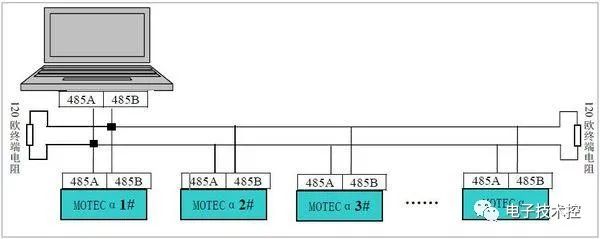
RS485 Connection
For TCP connections, only one device needs to be directly connected via Ethernet cable. If multiple devices are involved, an industrial Ethernet switch is required to connect all devices to the switch. Different devices can then be accessed via their respective IP addresses.
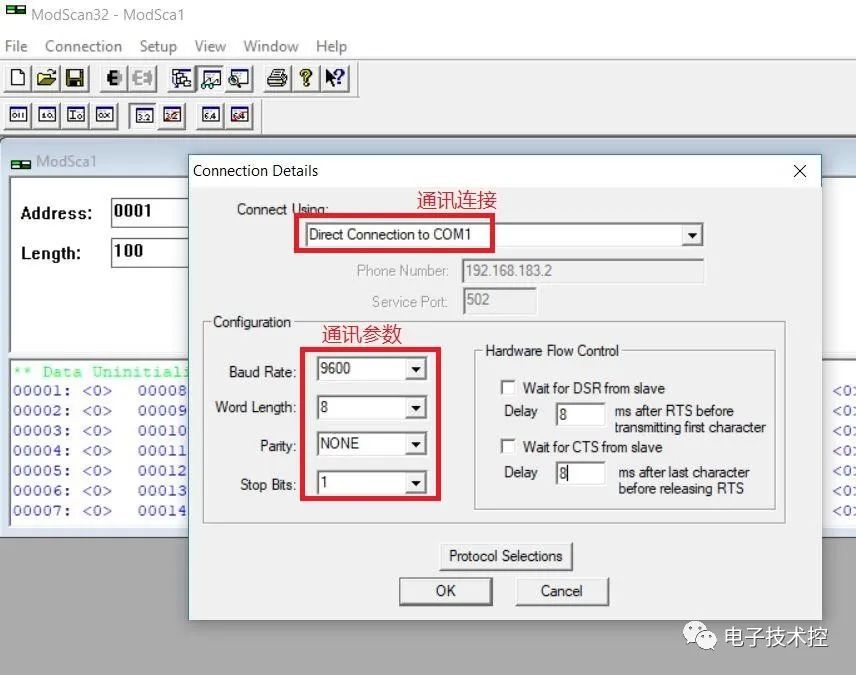
Second, open the ModScan software to configure communication parameters. For RS485 communication, select the serial port and set the baud rate (typically defaulted to 9600), data length (8 bits), parity bit (none), and stop bit (1 bit) according to the slave communication parameters, as shown in the figure:
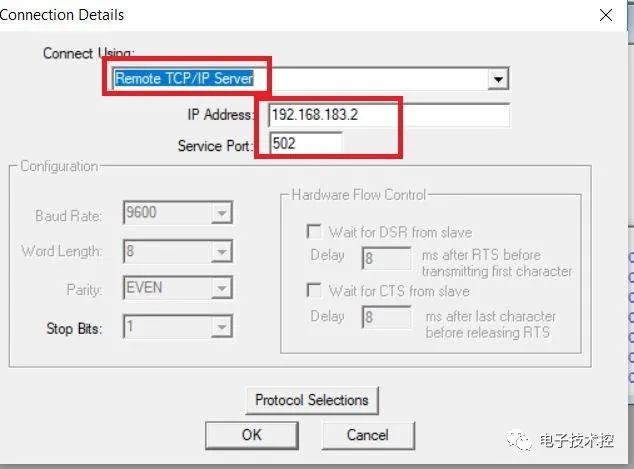
For Modbus TCP communication, configure the communication connection as shown below. Select the TCP/IP communication connection type, then enter the slave device's IP address and port number (default 502).
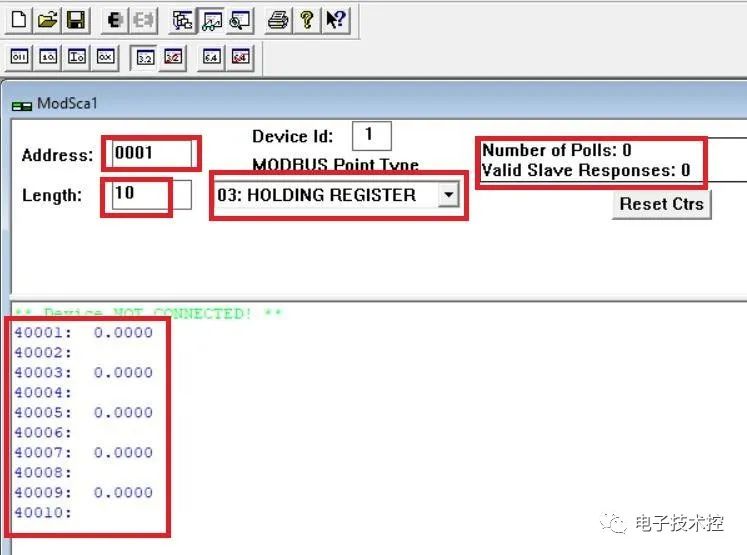
Third, configure the communication register: enter the starting address in the Address field, Length specifies the length, 03:HOLDING REGISTER denotes the register type (holding register), Device ID represents the slave station number. For Modbus RTU, enter the slave address here; for Modbus TCP communication, no entry is required. If using a serial server, the slave address must be entered. Number of Polls / Valid Slave Responses indicates the number of data transmissions/receptions, allowing detection of packet loss. The middle section displays test results indicating detected slave data. The current alarm status indicates a communication fault.
The data type selection is shown in the figure below. Currently, we use 32-bit floating-point types, along with bit types, integer types, double-precision floating-point types, and others. For floating-point types, you can also configure bit swapping.

Fourth, we conducted communication testing via Modbus TCP. The IP communication address was set to 192.168.1.10 with port number 502. The PC's IP address was configured within the same subnet as the slave station's IP address (192.168.1.10), such as 192.168.1.20.
To read the slave register (Holding Register), select Function Code: 03, Register Start Address: 1, Data Type: 32-bit Floating Point, and set the Number of Registers to Read: 10. Then click Connect, as shown below:
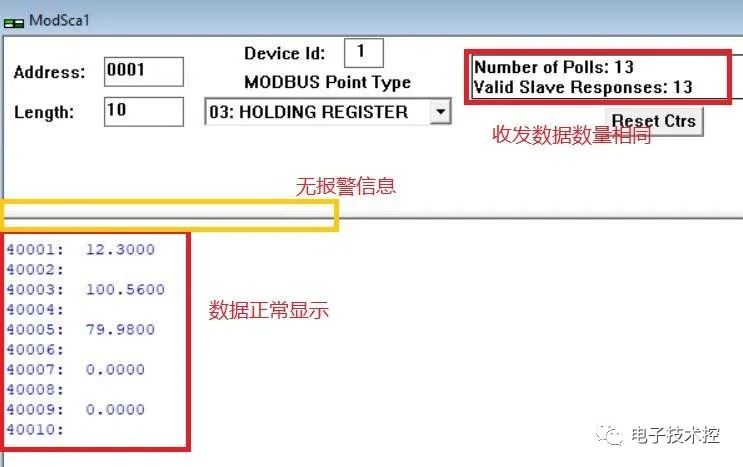
As shown in the diagram, the main interface displays no alarm messages, and the number of data packets sent and received matches, indicating no packet loss. Data is present in the corresponding registers, confirming successful communication. Mission accomplished.