


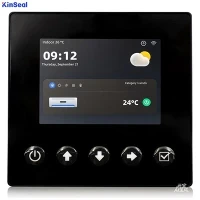


The Human-Machine Interface (HMI) touchscreen not tapping problem can be caused by a variety of reasons. In this article, we will explore various aspects of this problem in detail, including possible causes, diagnostics, solutions, and preventative measures.
HMI A touchscreen is an interactive input device that allows a user to interact with a computer or other electronic device by touching the screen. The main function of a touch screen is to detect the position of the user's touch and convert this positional information into coordinate signals, which are then transmitted to the computer or other electronic device for processing.
There are two main operating principles of touch screens: resistive and capacitive. Resistive touch screen by detecting the touch pressure to determine the touch position, while capacitive touch screen by detecting the capacitance change between the human body and the screen to determine the touch position.
1. Possible reasons for the touch screen point not moving
The problem of touch screen not tapping can be caused by a variety of reasons, the following are some common causes:
1.1 Hardware failure
Hardware failure is a common cause of touch screen not tapping. Possible hardware failures include:
- Damage to the touch screen: the surface or internal components of the touch screen may be damaged due to prolonged use, external impact and other reasons, resulting in the touch signal can not be transmitted normally.
- Connection line failure: the connection line between the touch screen and the computer or other electronic devices may be broken or poor contact due to aging, wear and tear, resulting in the touch signal can not be transmitted normally.
- Main board failure: the main board of the touch screen may be damaged due to unstable voltage, overheating and other reasons, resulting in the touch signal can not be processed normally.
1.2 Software failure
Software failure may also lead to the touch screen point can not be. Possible software faults include:
- Driver problems: the driver of the touch screen may not work properly because of incompatible versions, file corruption and other reasons, resulting in touch signals can not be properly recognized and processed.
- Operating system problems: The operating system of the computer or other electronic devices may fail due to viruses, corrupted system files, etc., affecting the normal use of the touch screen.
- Application problems: the application programs used by the user may not be able to respond correctly to the touch signals of the touch screen because of design defects, compatibility problems and other reasons.
1.3 Environmental factors
Environmental factors may also affect the normal use of the touch screen. Possible environmental factors include:
- Temperature: Excessively high or low temperatures may affect the performance of the touch screen, resulting in touch signals not being transmitted or processed properly.
- Humidity: Excessive humidity may cause the surface or internal components of the touch screen to become damp, affecting the transmission of touch signals.
- Dust and dirt: Dust and dirt on the surface or inside of the touch screen may prevent the transmission of touch signals, resulting in touch failure.
2. Diagnostic Methods
To solve the problem of touch screen not working, you first need to carry out a detailed diagnosis to find out the root cause of the problem. The following are some common diagnostic methods:
2.1 Observation
Observe the appearance of the touch screen and the connecting wires to check for signs of damage, breakage or poor contact.
2.2 Testing
Test the touchscreen using different applications or devices to determine if the problem is limited to a particular application or device.
2.3 Update Driver
Check the driver version of the touchscreen and try to update to the latest version if necessary.
2.4 Check Operating System
Check the operating system of the computer or other electronic device to ensure that it is functioning properly and is free of viruses or other malfunctions.
2.5 Cleaning the touchscreen
Use a clean soft cloth to gently wipe the surface of the touch screen to remove dust and dirt.
3. Solutions
Based on the diagnostic results, the following solutions can be taken:
3.1 Replace damaged hardware
If the diagnostic results show that the touch screen or connecting cable is damaged, you need to replace it with new hardware.
3.2 Update or reinstall the drivers
If the problem is with the driver, try to update or reinstall the driver.
3.3 Repair or reinstall the operating system
If the problem is with the operating system, try repairing or reinstalling the operating system.
3.4 Clean the touch screen
If there is dust and dirt on the surface or inside the touch screen, it needs to be cleaned.
4. Preventive Measures
The following preventive measures can be taken to prevent the touch screen from not tapping:
4.1 Regular Inspection and Maintenance
Regularly check the appearance of the touch screen and the connecting wires to ensure that there are no signs of damage or poor contact. Also, update the driver and operating system regularly to ensure that they are functioning properly.
4.2 Avoid High Temperature and Humidity
Try to avoid exposing the touch panel to excessive high or low temperatures and humidity to prevent performance degradation or damage.
4.3 Avoid external impact
When using the touch screen, try to avoid excessive force or impact on the screen to avoid damage.
4.4 Regular Cleaning
Regularly use a clean soft cloth to gently wipe the surface of the touch screen to remove dust and dirt.
5.Conclusion
The problem of touch screen not tapping can be caused by a variety of reasons, including hardware failure, software failure and environmental factors. To solve this problem, a detailed diagnosis is required to find out the root cause of the problem and adopt the appropriate solution.